
|
|
Overview
Introduction
In a nutshell, this is how SocialAdr works |
|---|
|
Important - Members with a Lazy account don't need to worry about Sharing. All they do is Add their own bookmarks and then sit back and relax.

Social Accounts
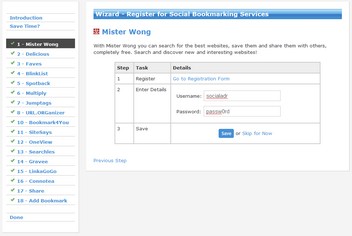
Setup Wizard
The Setup Wizard gives you step-by-step instructions on setting up your social media accounts, Sharing other members' bookmarks, and adding your own bookmarks.
There's even a handy-dandy checklist so you can stop half-way through and return later where you left off.
It's by far the easiest way to get started using SocialAdr!
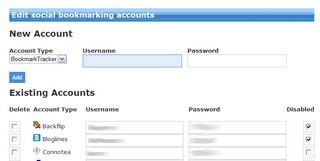
Edit Accounts
As an alternative to the Setup Wizard, you can use the Edit Accounts page to enter all your account information into SocialAdr.
The top part of the form is used to add new accounts. The bottom part of the form is used to edit existing accounts.
If you mark an account to be Deleted it is gone permanently unless you add it back yourself.
If you mark an account to be Disabled it simply won't be used when you share bookmarks, but you can always enable it again whenever you'd like.
Bookmarks
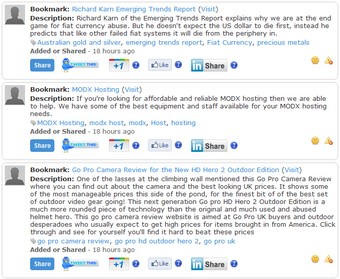
Share Queue
The next thing you'll want to do once your accounts are setup is to Share other members' bookmarks.
You earn Credits every time a bookmark you Share is successfully submitted to a social media service. These credits are required before you can even add your own bookmarks into the system.
First, browse the Share Queue and find a bookmarked page that you like and would feel comfortable promoting / publishing to your social media accounts.
Click the Share button. The bookmark will be submitted for being processed and will disappear from your Share Queue. The time it takes to process the shared bookmark depends on how many other bookmarks are waiting ahead of yours.
The
 icon is used to remove a bookmark from your Share Queue that you prefer not to share for whatever reason.The
  icon is used to report a bookmark that you feel has violated the SocialAdr standards. Once a bookmark receives a certain number of violation votes, it is disabled.
Twitter 
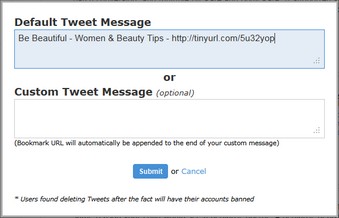 The
The  button is used to tweet the bookmark URL to your Twitter account (that you hopefully linked up during the Setup Wizard). You can either tweet the default message or type a custom message.
The number of credits you earn for each tweet is calculated based on the # of Twitter followers you have, times a multiplier that's based on your SocialAdr account type (for 'Free' users that multiplier is 0.1):
((ln(followers+50)^2)/3)-4
Example: you have a 'Free' SocialAdr account and a Twitter account with 2,035 followers. Each tweet you send will earn you 15.5 * 0.1 = 1.6 credits.
Only Lazy members can receive tweets on their URLs.
Google +1
The
 button is used to indicate to Google that you enjoy a specific webpage (learn more here).
When you press the +1 button for a bookmark in the Share Queue, a new tab will open in your web browser. Then all you need to do is click the +1 button in the header on the new tab, and you're done.
Each +1 click earns you 1 credit (yes, that's 10 TIMES what you earn for most other social media submissions).
Only Lazy members can receive +1 clicks on their URLs.
Facebook Likes
The
 button is used to tell Facebook that you enjoy a specific webpage.
When you press the Like button for a bookmark in the Share Queue, a new tab will open in your web browser. Then all you need to do is click the Like button in the header on the new tab, and you're done.
The number of credits you earn for each Like is typically calculated based on the # of Facebook friends you have, times a multiplier that's based on your SocialAdr account type (for 'Free' users that multiplier is 0.1):
((ln(friends+50)^2)/3)-4
Example: you have a 'Free' SocialAdr account and a Facebook account with 356 friends. Each Like you click will earn you 8 * 0.1 = 0.8 credits.
We also integrate with 3rd party services that provide Facebook Likes. When we are unable to determine the # of friends a user has, you'll be charged a fair number of credits (based on the average friend count system-wide).
Only Lazy members can receive Likes on their URLs.
The
 button is used to share a webpage with your LinkedIn connections. (learn more here).
When you press the LinkedIn Share button for a bookmark in the Share Queue, a new tab will open in your web browser. Then all you need to do is click the LinkedIn button in the header on the new tab, click "Share" on the pop-up window, and you're done.
Each LinkedIn Share earns you 0.5 credit (yes, that's 5 TIMES what you earn for most other social media submissions).
Only Lazy members can receive LinkedIn Shares of their URLs.
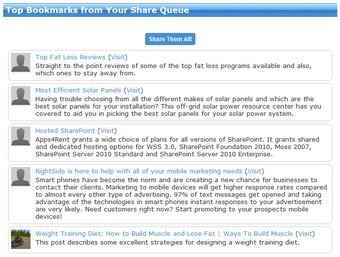
Quick Share
The Quick Share page allows you to quickly share 5 bookmarks at once by clicking a single button.
This page is perfect for those users that aren't too picky about what bookmarks they promote or don't have a lot of time.
Get bookmarklet
The bookmarklet
 is used as a shortcut to bookmark your own web pages. Follow the instructions to have it appear in a convenient location on your browser's links bar.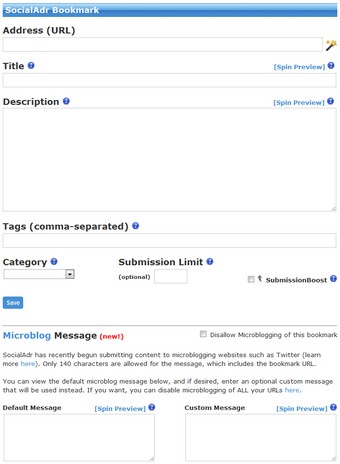
Add Bookmark
This form is used to add new bookmarks. Each field has a tooltip icon
 that explains what the field is used for.
The [Spin Preview] links should be used to ensure your spin tags {|} are setup properly.
The Submission Rate field affects how frequently your bookmark is submitted to the social sites. This setting overrides whatever default setting you have on your "My Bookmarks" page. The system will automatically pause your bookmarks in order to limit the submission rate. The available rates are:
- Drip = Once per week
- Slow = Once every 2 days
- Normal = 2-3 times per day
- Fast = 8 times per day (costs 50% more credits)
The Microblog Message section can be used to customize the default 140 character message that's used when submitting your URLs to microblogging sites such as Twitter. Spin tags {|} are recommended. The URL is automatically appended to the end of the message so you don't need to enter it.
You can check the "Disallow Microblogging of This Bookmark" checkbox if you don't want this specific bookmark to be microblogged by other users. If you want to disallow other users from tweeting ALL of your URLs, you can do that here.
My Bookmarks
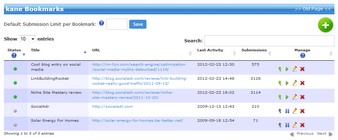
Here's where you can see all of your own bookmarks.
You can edit
 , delete
  , pause
  or start
  each of your bookmarks. When paused they won't be visible to other users and cannot be Shared.
Use the "Search" field to quickly search for any attribute of a bookmark, even on hidden pages. Each column header can also be clicked to sort by that column.
If you click on a bookmark's title, you're taken to a page where you can view its description and tags.
Bookmark Archive
Depending on your account type, each of your bookmarks can only be submitted a specific number of times. Once this limit is reached your bookmark will be automatically Archived. This is where you can view all of your Archived bookmarks.
Deleted Bookmarks
If you delete a bookmark, it will end up on this page. If you ever need to un-delete it, just click the
 button and it'll end up back on your My Bookmarks page.
History
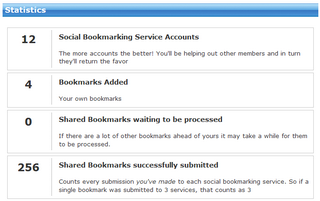
Statistics
This is where you can view data related to your bookmarks and sharing activity.
If you're into numbers it's fun to see the powerful effect of the SocialAdr community, as the numbers grow much more quickly than if you were only submitting your own bookmarks.
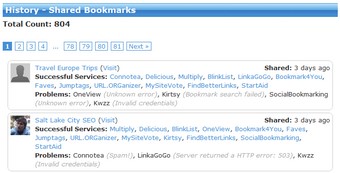
Shared Bookmarks
On this page you can see all the bookmarks that you've ever shared, including details such as:
* When the sharing occured
* Which user's bookmark it was
* The bookmark title and a link to visit it
* What services were successful
* When services failed and the reasons why
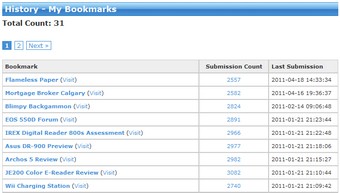
My Bookmarks
Here you can see the share history of your own bookmarks.
The main page shows:
* The bookmark title, a link to edit it, and a link to visit it
* The total submission count
* The date and time of the last submission
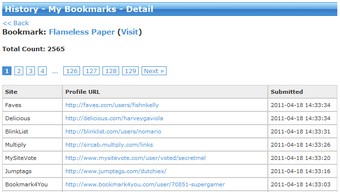
If you click the Submission Count links you're taken to a detail page which shows:
* The Site name where the bookmark was submitted
* The Profile URL where you can view the bookmark
* The date and time of the submission
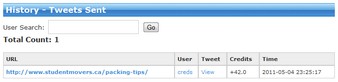
Tweets Sent
On this page you can view all the bookmarks you've tweeted about. This includes:
* The URL that was tweeted
* The SocialAdr user that owns the bookmark
* A link to view the tweet itself on Twitter.com
* How many credits you earned for each tweet
* The date and time of the tweet
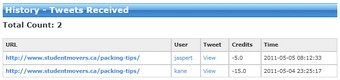
Tweets Received
On this page you can view all the tweets your bookmarks have received. This includes:
* The URL that was tweeted
* The SocialAdr user that made the tweet
* A link to view the tweet itself on Twitter.com
* How many credits were deducted for each tweet
* The date and time of the tweet
If you want to disallow other users from tweeting your bookmarks, you can do that here.
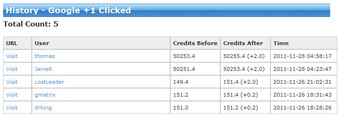
Google +1 Clicked 
On this page you can view all the bookmarks you've clicked +1 for. This includes:
* The URL that was +1'd
* The SocialAdr user that owns the bookmark
* How many credits you earned for each +1
* The date and time of the +1 click
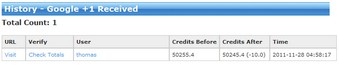
Google +1 Received
On this page you can view all the +1 clicks your bookmarks have received. This includes:
* The URL that was +1'd
* The SocialAdr user that clicked the +1 button
* A link to check your total +1s
* How many credits were deducted for each +1 click
* The date and time of the +1 click
If you want to disallow other users from +1'ing your bookmarks, you can do that here.
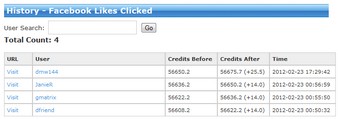
Facebook Likes Clicked 
On this page you can view all the bookmarks you've Liked. This includes:
* The URL that was Liked
* The SocialAdr user that owns the bookmark
* How many credits you earned for each Like
* The date and time of the Like
Facebook Likes Received
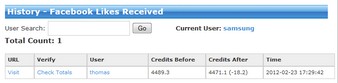
On this page you can view all the Likes your bookmarks have received. This includes:
* The URL that was Liked
* The SocialAdr user that Liked it
* A link to check your total Likes
* How many credits were deducted for each Like
* The date and time of the Like
If you want to disallow other users from Liking your bookmarks, you can do that here.
LinkedIn Shares Sent 
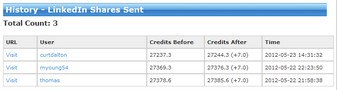
On this page you can view all the URLs you've Shared on LinkedIn. This includes:
* The URL that was Shared
* The SocialAdr user that owns the bookmark
* How many credits you earned for each Share
* The date and time of the Share

LinkedIn Shares Received
On this page you can view all LinkedIn Shares your bookmarks have received. This includes:
* The URL that was Shared
* The SocialAdr user that Shared your URL
* A link to check your total Shares
* How many credits were deducted for each Share
* The date and time of the Share
If you want to disallow other users from Sharing your bookmarks on LinkedIn, you can do that here.
